
Everything you need to master the TPS app
A clear, step-by-step guide to the four things that matter most in the app — your level, booking & playing, your community, and the policies that keep it fair.
TPS is a social padel app that brings play, community, and competition into one place. Players of every level use it to book courts, find matches, connect with their club community, and compete in events. Club admins use it to run communities, create events, and organise tournaments — all from the same app.
The whole app is organised into three areas, reached from the bottom navigation bar:
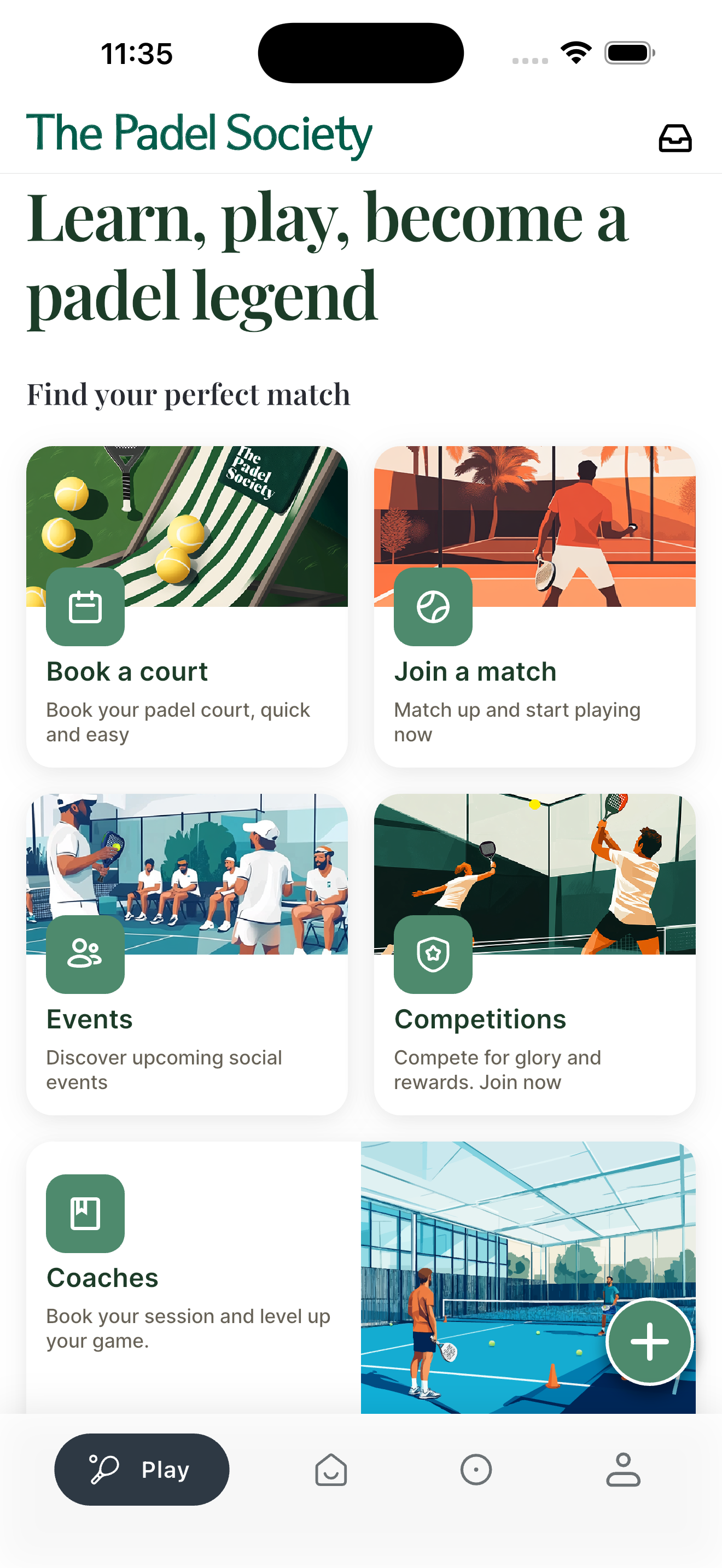
Book courts, create matches, join open matches, register results — everything about actually playing.
Join groups, discover events, view rankings, chat, browse the gallery — the social side.
Your level and reliability, booking history, settings, and support.
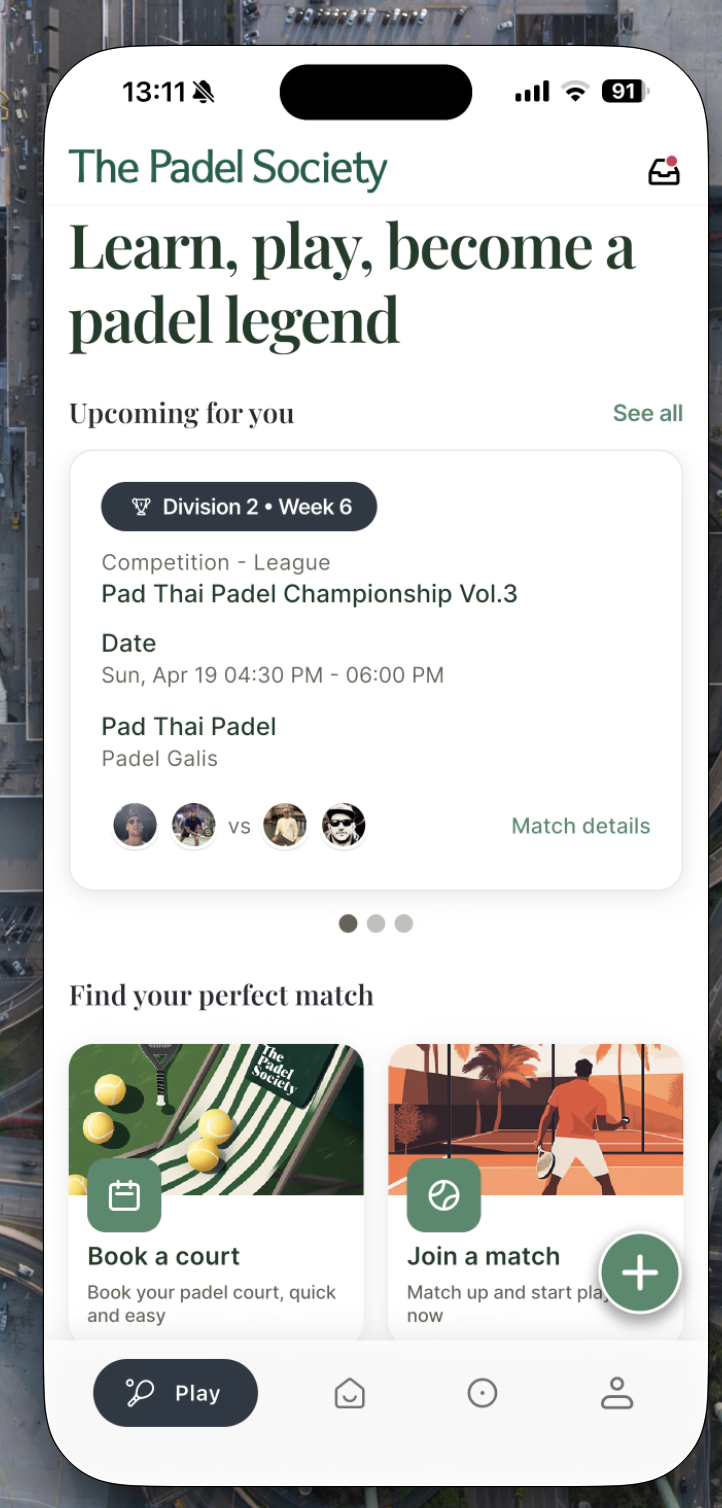
The home screen carries the tagline "Learn, play, become a padel legend" and gives you quick tiles to the main features, plus a live list of your upcoming booked matches — tap any to open its details.
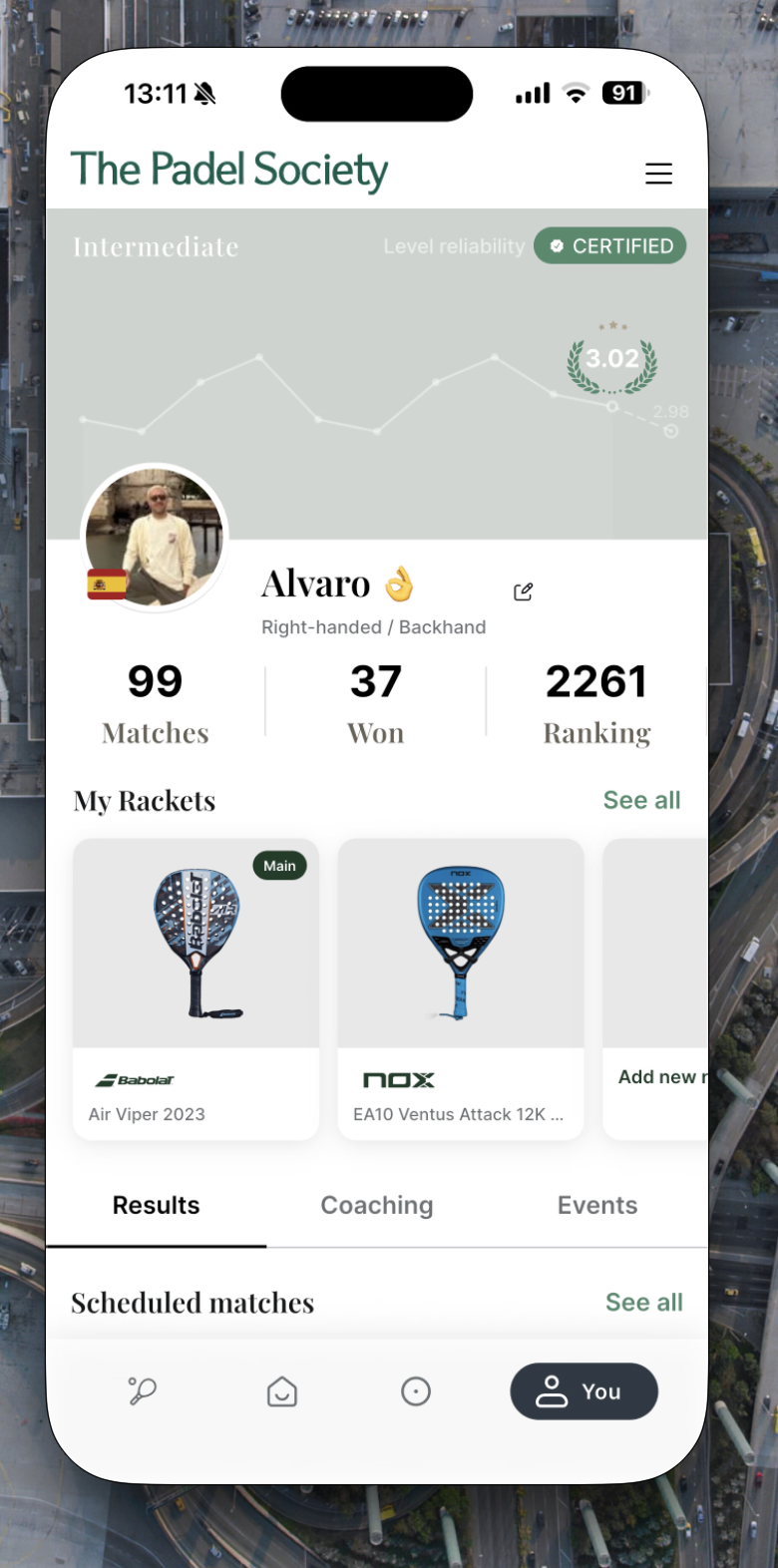
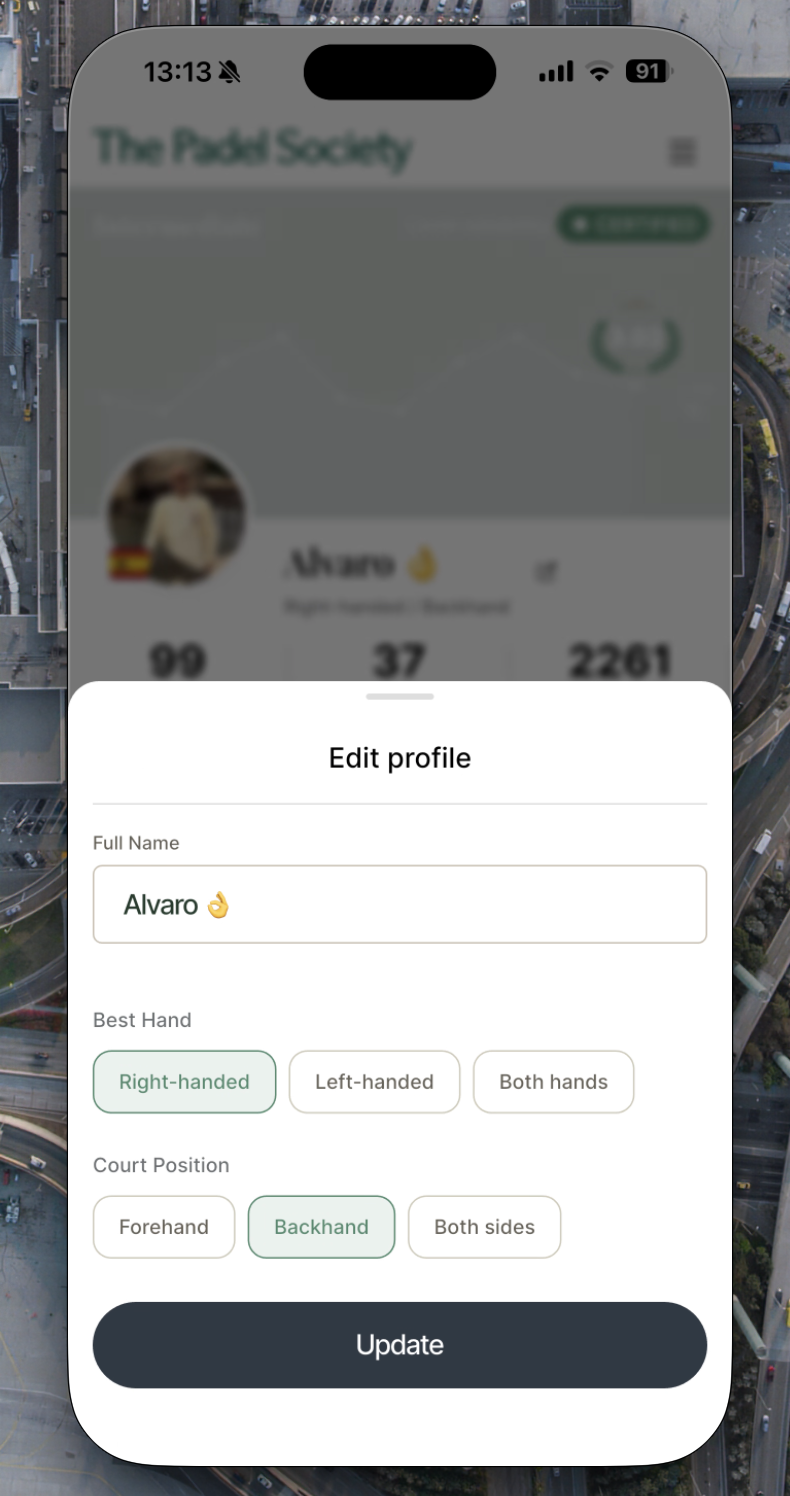
Every player has a numeric level from 0 to 7.0 that reflects current playing ability. It's used across the app to balance teams, set event entry requirements, and create fair matchups. Your level is not permanent — it evolves as you play competitive matches. Each numeric level maps to one of eight named tiers.
Every match counts. Your rating sits in one of these eight tiers — from Rookie all the way to Elite:
Bronze, Silver, and Gold each split into two sub-levels — a plus (+) and a minus (−) — so players close in ability are matched even more precisely:
Your level moves based on how you play — not on your profile settings:
- →Competitive match results — winning or losing against players at different levels moves your rating up or down.
- →Playing regularly — frequent matches keep your data fresh and current.
- →Amount of data — the more competitive matches on record, the more precisely the system can place you.
Reliability is a separate indicator from your level. It measures how accurate and stable your level is.
- →High reliability → your level closely reflects your real ability.
- →Low reliability → your level is an estimate that needs more data to settle.
Reliability improves as you:
- →Play more competitive matches
- →Get consistent results over time
Some clubs offer official level certification sessions in the app. A qualified assessor checks your level in person and validates it on the platform.
- →What it does: confirms your level is "validated by a club" — making it reliable from day one, without needing many competitive matches first.
- →Where to find it: certification sessions appear as events in the Events section. Look for titles with "Level Assessment" or "Certification".
- →Who it's for: new players who want accurate matchmaking straight away, or anyone whose self-assessed level feels off.
When you create a match or event you can set a level range (e.g. Silver–Diamond, or 2.9–6.1). It acts as a filter for who can join:
| Player's Level | What Happens |
|---|---|
| Within the range | Joins immediately — no approval needed |
| Outside the range | Can tap "Request to Join" — the organiser decides |
- 1Tap the Play button (racket icon, bottom nav)Or tap the "Book a court" tile on the home screen.
- 2Select "Book a Court"
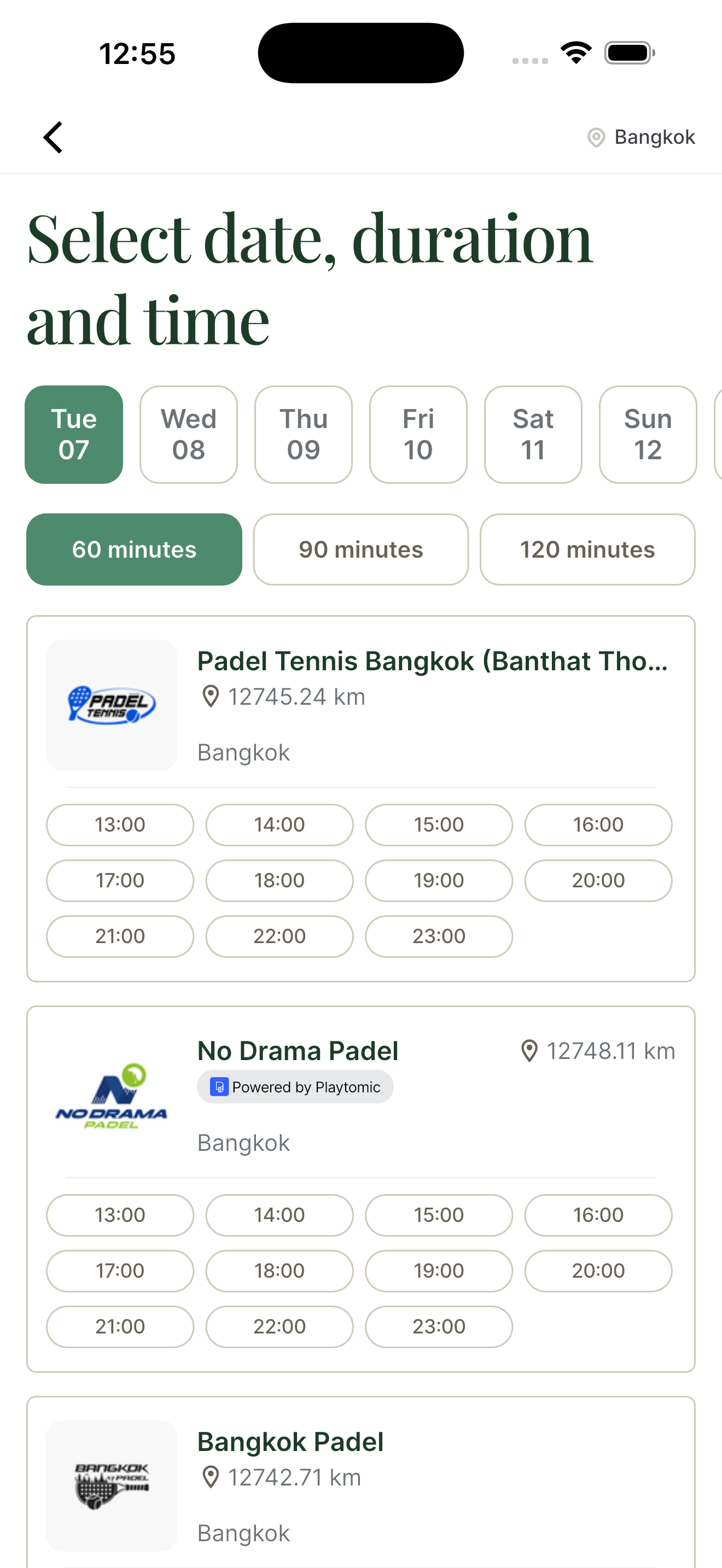
- 3Choose your clubBrowse or search TPS partner clubs by name or location, then tap yours.
- 4Pick a dateA calendar opens with today highlighted. Tap your preferred date.
- 5Select a time slotGreen = available · Grey = taken. Tap your preferred start time.
- 6Choose session durationUsually 60, 90, or 120 minutes — this affects the price.
- 7Choose court type (if offered)Indoor or Outdoor, where the club has both.
- 8Review the cancellation policyThe club's specific terms are shown here — read them before continuing, they vary by club.
- 9Choose payment methodPay at Club — pay at reception on arrival. Pay by Card — charged in-app now; receipt by email.
- 10Confirm the bookingCheck the summary, tap Confirm Booking. The court is locked in and a confirmation notification is sent.
- 1Tap the match in your upcoming matches
- 2Tap "Invite friends"A unique shareable link is generated.
- 3Share via WhatsApp, iMessage, or emailFriends who tap the link land on the match page and can take a team slot directly.
Booking a court reserves the physical court time. Creating a match organises the players. They're separate — you can create a match without booking in-app if the court is already arranged elsewhere.
- 1Tap Play → "+" → "Create match"
- 2Select the club and time slot
- 3Choose match type: Friendly or CompetitiveThe most important choice. If unsure, choose Friendly.
- 4Confirm and createIf there are open spots, it becomes an Open Match other players can request to join.
| Match Type | Affects Level? | When to Use |
|---|---|---|
| Friendly | ❌ No — never affects levels | Social play, training, mixed groups, when unsure |
| Competitive | ✅ Yes — once results are registered | When everyone wants their win/loss to count |
- 1Tap Play → "Join a match" (or the home tile)
- 2Browse available matchesEach card shows date, time, club, type, required level range, players joined, and open spots.
- 3Filter to narrow resultsBy location, club, level range, date, match type, or open spots.
- 4Tap a match for full detailsShows venue, organiser, level requirement, teams, and open slots.
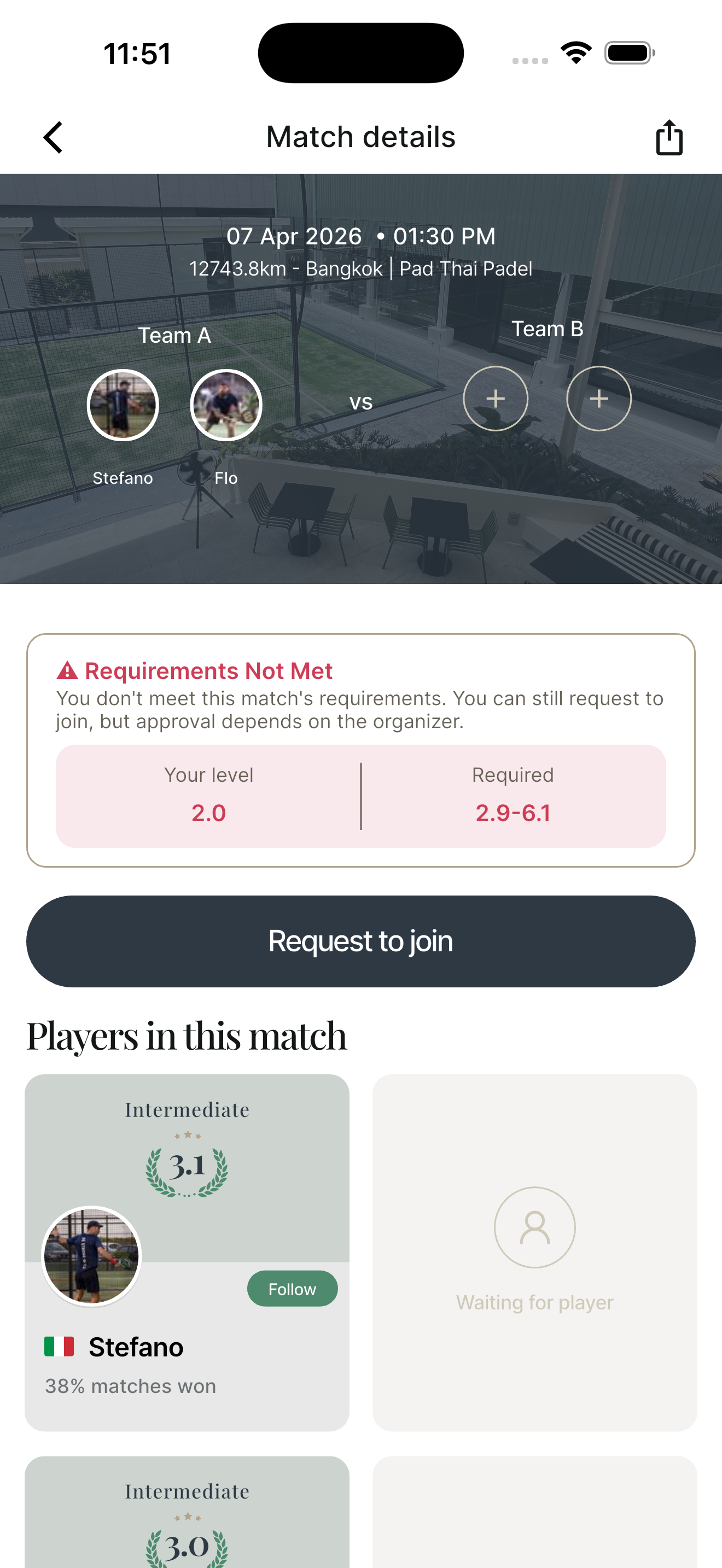
- 5Check the level requirementThe screen compares the match's range against your level. Outside range shows a "Requirements Not Met" notice — you can still request.
- 6Choose a team slotMatches are 2v2 — pick Team A or Team B where there's an open spot.
- 7Tap "Join" or "Request to Join"Within range: you join instantly. Outside range: the organiser approves or declines.
- 1Open the match from home or Activity
- 2Tap the three-dot menu (···)
- 3Tap "Leave match" and confirmOnly if the match is more than 24 hours away — otherwise the option is disabled.
Registering results is how scores are officially saved. For competitive matches, it's the trigger for level calculations — without it, no levels change. Friendly results can be saved for record-keeping but never affect levels.
- 1Tap Play → "+" → "Register result"
- 2Find the matchYour recent matches with pending scores are listed. Tap the right one.
- 3Enter the scoreInput the final score for each team (e.g. Team A: 6 — Team B: 4).
- 4Confirm and submitThe result is saved. For competitive matches, levels recalculate automatically.
- →Match Chat — a private group auto-created for every match. Lives inside the match detail screen.
- →Community Chat — a group chat for the whole community, in its Chat tab. Open to all members.
- →Direct Messages — one-to-one chats between any two players. Start from a profile or the Chats tab.
- 1Open any match from home or Activity
- 2Tap the chat bubble icon (top-right)
- 3Type and sendAll players get a notification. Use it to confirm the meeting point or sort post-match plans.
A Community is a dedicated group space inside TPS — built around a club, social group, skill level, or event. Your club can run one main community plus sub-communities (e.g. "Ladies Group", "Tuesday Regulars"). Each has its own feed, events, rankings, chat, and gallery.
Opening the Community tab shows:
- →Your communities — groups you've already joined, at the top.
- →Suggested communities — based on clubs you play at, events you've joined, and your location. Each card shows name, photo, description, and type.
Explore also highlights upcoming events from all communities — you can join events even before joining the community.
- 1Open the Community tab
- 2Search or browseFind one by name, or scroll suggestions.
- 3Tap it to open the page
- 4Tap "Join Community"You immediately gain access to all tabs.
- 1Tap the invite link from the adminPrivate communities don't appear in search — the only way in is a direct link.
- 2The community page opens
- 3Tap "Request to Join"A request goes to the admin.
- 4Wait for approvalYou're notified when approved. Until then, tabs stay locked.
- 1Open your community → Timeline tab
- 2Tap "+" or PostOnly visible to owners and admins.
- 3Write your announcementKeep it short. You can attach a photo.
- 4Tap PostAll members get a push notification; it appears at the top of the timeline.
| Action | Owner / Admin | Member |
|---|---|---|
| Create events | ✅ | ❌ |
| Post timeline announcements | ✅ | ❌ |
| Share open matches to community | ✅ | ❌ |
| Organise competitions | ✅ | ❌ |
| Remove members / promote admins | ✅ | ❌ |
| Edit community name, photo, description | ✅ | ❌ |
| View posts, join events & matches | ✅ | ✅ |
| See rankings, use chat, view gallery | ✅ | ✅ |
- 1Community tab → "Create Community"
- 2Enter the community nameBe specific — e.g. "JPC Tuesday Ladies Group".
- 3Write a descriptionWho it's for and what to expect.
- 4Upload a photo or bannerClub logo or a court photo — becomes the header.
- 5Set visibility: Public or PrivatePublic — anyone can find and join. Private — invite-only, hidden from search.
- 6Link to your club (optional)Associates it with your TPS club and shows on your club page.
- 7Tap "Create"You're the owner and admin automatically.
- 8Share the invite linkCopy it into your club's WhatsApp group or email list.
- 1Open your community → "+" → "Create event"
- 2Enter the event nameClear and descriptive — e.g. "Tuesday Americano — May".
- 3Set date and start time
- 4Select venue / club
- 5Set number of courtsUsed to generate matchups per round — enter only the courts you'll use.
- 6Choose the competition typeNo Competition, Americano, Mexicano, or Mini Tournament — see Formats below.
- 7Choose the variantClassic — individuals rotate. Team — fixed pairs (Americano/Mexicano).
- 8Set maximum playersEven numbers work best (8, 12, 16…). A waitlist appears once full.
- 9Set points per roundStandard 21; shorter 16; longer 32.
- 10Set a level range (optional)Wide for social events, tighter for competitive.
- 11Set payment typeFree, Pay at Club, or Pay by Card.
- 12Add a descriptionExtra rules, dress code, or notes for players.
- 13Tap "Publish"It goes live in the Events tab; members can join.
| Status | Meaning |
|---|---|
| Open | Spots available — members can join |
| Fully Booked | No spots — members can join the waitlist |
| Completed | Ended — scores and results are final |
- →When Fully Booked, a "Join Waitlist" button replaces "Join".
- →It's first come, first served.
- →If someone cancels, the next person is notified immediately.
- →They must confirm — otherwise it passes to the next in line.
- 1Open the event → tap Share (top-right)A unique event link is generated.
- 2Post it to WhatsApp, email, or socialPlayers who tap it land straight on the registration page.
⚪ No Competition
- Social play only — no rounds, no winners, no leaderboard
- Players show up and play together, no score tracking
- Best for: practice sessions and social mixers
- No level data is collected
🟢 Americano
- Players rotate partners every round — play with and against everyone
- Points tracked individually across all rounds
- Leaderboard ranks individual players by total points
- Best for: social mixing and large groups
- Variants: Classic (individual) or Team (fixed pairs)
🟠 Mexicano
- Like Americano, but smarter rotation
- After Round 1, matchups follow current leaderboard position
- Top players face top; each round gets more competitive
- Best for: competitive groups wanting fair matchups
- Variants: Classic or Team
🔵 Mini Tournament
- Fixed teams throughout — teams don't change
- Includes a Round Robin phase and a Knockout stage
- Organiser sets custom rules and advancement
- Best for: club championships and league play
| Variant | How partners work | Leaderboard tracks | Best for |
|---|---|---|---|
| Classic | Players rotate — different partner each round | Individual players | Social mixing, large groups |
| Team | Fixed pairs all rounds — partner never changes | Fixed pairs | Couples, training partners |
| Points | Approx. Time / Round | Best for |
|---|---|---|
| 16 points | 12–15 min | Quick sessions, warm-ups, beginners |
| 21 points (standard) | 18–22 min | Standard social Americano |
| 32 points | 28–35 min | Competitive or premium events |
Add a few minutes between rounds for water breaks, score entry, and court changeovers.
Watch each format in action — recorded live on the TPS app.
- 1Open the active eventThe current round shows all court matchups.
- 2Tap a court matchupThe score entry screen opens for that court.
- 3Enter the final score for each sideE.g. Team A: 21 — Team B: 15.
- 4Tap "Confirm Score"The leaderboard updates instantly.
- 5Repeat for all courtsOnce all are confirmed, the next round's matchups generate automatically.
Each round — who played who, on which court, and the score. Use it to review or verify.
Cumulative standings — total points, position, rounds played. Updates live after every entry.
- 1Open the event → Leaderboard tab
- 2Tap ShareA live link is generated — anyone can view standings in real-time, even without a TPS account.
- 3Post it to WhatsApp or InstagramMid-event for hype, and again at the end with final results.
- →All players confirmed and have a TPS account
- →Event created in advance (not the morning of)
- →All players added to the event
- →Number of courts set
- →Points per round decided (standard 21)
- →One person designated for score entry
- →Phone charged and online
- →Never add players mid-tournament — it breaks the rotation.
- →One person enters scores to avoid conflicts.
- →Announce scores out loud — players love the updates.
- →Screenshot the final leaderboard before players leave.
- →Allow 3–5 min between rounds for entry and changeover.
- 1Confirm the final player listRemove no-shows before starting. Even numbers give the cleanest rotations.
- 2Tap "Start Tournament"Round 1 matchups appear instantly. Announce each court clearly and send players out.
- 3After each round: collect and enter scoresWalk to each court, enter the score, tap Confirm. Announce the top 3, then start the next round.
- 4At the end: share the final leaderboardLeaderboard tab → Share → send to the club WhatsApp group. Screenshot the final standings.
Set per club and shown before you confirm any booking:
| Method | How it works | Receipt |
|---|---|---|
| Pay at Club | No in-app charge — settle at reception on arrival | From club |
| Pay by Card | Charged in-app at confirmation (credit/debit) | Email automatically |
- →Apply to bookings and events cancelled within the club's stated window.
- →Processed automatically through the payment gateway — no manual request.
- →Missing a refund? Contact TPS support via Profile → Support.
- →Final refund decisions rest with the club — TPS facilitates but doesn't override club policy.
TPS follows the cancellation and no-show policies set by each club. TPS does not set universal rules — each club decides its own terms.
- →Cancellation terms are shown before you confirm a booking — always read them.
- →Policies may include cancellation deadlines, partial charges for late cancellations, or full charges with no refund after a deadline.
- →The final decision on charges and refunds always belongs to the club.
A no-show is failing to attend a booking without cancelling first.
- →Clubs may charge the full booking amount for no-shows.
- →Some clubs send direct reimbursement requests for unpaid no-shows.
- →Review the cancellation deadline before confirming.
- →Cancel promptly if you can't attend — don't wait until the last minute.
- →Contact the club directly for genuine emergencies — clubs often have discretion.
- →Contact TPS Support (Profile → Support) for a dispute you can't resolve.